
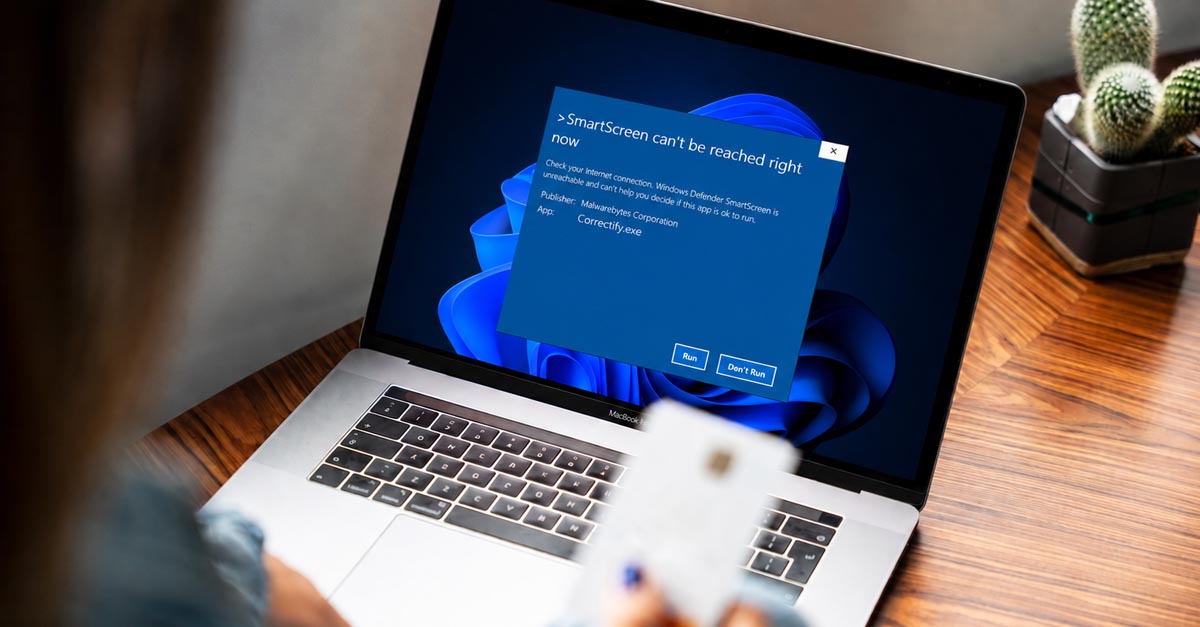
Update, 17 September 2026: since version 1.8.0, the Correctify installer is digitally signed. This article originally explained why it wasn’t; it has been rewritten to reflect the current situation, and it is still useful if the blue screen shows up on your PC.
You have just downloaded the Correctify Windows app, you double-click it, and a blue screen blocks your way: “Windows protected your PC”. The first instinct is understandable: delete the file. Yet this message does not mean what most people think. Let’s take two minutes to explain it honestly, without jargon, and to give you the means to check for yourself rather than take my word for it.
This message does not mean “virus detected”
The blue screen comes from Windows SmartScreen, a filter built into Windows 10 and 11. Many people mistake it for an antivirus that found something. That is not its job: SmartScreen does not analyse the contents of the program, it assesses its reputation. In other words, it is not asking “is this file dangerous?” but “do I already know this file?”.
To answer, it mainly looks at two things: does the program carry a code-signing certificate identifying its publisher, and has that publisher or that file already been downloaded and run by a lot of people? If the answer is no on both counts, the app is simply unknown, and Windows would rather warn you. A perfectly clean piece of software released last week triggers exactly the same warning as a shady one: SmartScreen cannot tell them apart, because it does not judge the code.
What changed: Correctify is digitally signed since version 1.8.0
Up to version 1.7.1, Correctify was not signed, and I explained it here as a matter of budget: a regular code-signing certificate costs several hundred euros a year, for a free project with no ads and no subscription that I build in my spare time. Since then, I found a suitable offer: the certificate authority Certum issues an “Open Source Developer” certificate reserved for projects whose code is public, for about thirty euros a year. The app’s code is published under the MIT licence, which made this possible.
Getting this certificate is not a formality: the certificate authority verified my identity against an official ID and the link between that identity and the project, before issuing a certificate in my name. The key used to sign is never stored on a disk: it stays in a secure module, and every signature has to be approved from my phone. In practice, three things change for you:
1. Windows tells you who published the program. In the User Account Control window, instead of “Unknown publisher”, you now read “Open Source Developer ANTHONY LACROUX”. If you see that name, the file really comes from here and not a single byte has been changed since it was signed: the slightest alteration would invalidate the signature.
2. Automatic updates are verified. Before installing a new version, the app checks that the downloaded update carries the same signature. An update whose signature does not match is rejected.
3. The signature is timestamped. An independent timestamping service certifies the date of each signature, which keeps it valid even after the certificate expires. You could reinstall this version in two years and it would still be recognised as signed.
Why the blue screen may still appear for a while
Signing does not make SmartScreen vanish overnight, and I would rather say so plainly. The reputation it assesses is now attached to the certificate, not only to the file. A brand-new certificate starts from zero: during the first few weeks the warning may still show up, then it fades as installations accumulate. The big difference from before is that this reputation no longer resets with every new version: each update signed with the same certificate inherits it instead of starting over.
If the blue screen does appear, the check is simple: click “More info” and look at the Publisher line. It must read “Open Source Developer ANTHONY LACROUX”. If it reads “Unknown publisher”, you do not have version 1.8.0 or later downloaded from the official site: do not install it.
Don’t take my word for it: check
“It’s safe, I promise” is exactly what a piece of malware would say too. So the right answer is not trust, it is verification. Here is what you can do, for free, in two minutes.
1. The digital signature. Right-click the downloaded file, “Properties,” then open the “Digital Signatures” tab. The signer name must be exactly “Open Source Developer ANTHONY LACROUX”, and the “Details” button must report the signature as valid, with a timestamp. In PowerShell, the same check is a one-liner:
Get-AuthenticodeSignature "$env:USERPROFILE\Downloads\Correctify Setup *.exe" | Format-List Status, SignerCertificate
The Status field must be Valid.
2. The public VirusTotal report. The installer is scanned by more than 70 antivirus engines through VirusTotal, and the report can be read by anyone from the Security section of the Windows page. You need to install nothing to read it.
3. The SHA-256 hash, to be sure it is the very same file. A scan report is only worth something if it covers the file you actually downloaded. The SHA-256 hash is a kind of unique serial number: two identical files share the same hash, and the slightest change turns it into something completely different. The installer’s hash is published on the Windows page; to compute your own file’s hash:
Get-FileHash "$env:USERPROFILE\Downloads\Correctify Setup *.exe" -Algorithm SHA256
If both hashes match, your file is the one that was scanned, byte for byte. If they differ, do not open it and download it again from the official site.
4. Look at what the app does with your data. The text you correct goes straight to the AI provider matching your key (Google Gemini, OpenAI or Anthropic), and the correction comes back to you. There is no intermediate server, no account, and nothing is kept on my side. And since the code is public, you do not have to take my word on that either.
If the blue screen shows up anyway: install in three clicks
Once you have checked the publisher name, getting past the blue screen takes three steps:
1. On the “Windows protected your PC” window, click “More info”, the discreet link under the text.
2. The file name and the publisher appear, along with a new button: “Run anyway”.
3. Click it, and the installation proceeds normally.
You are only asked once: after installation, updates are installed on their own in the background, without going through that screen again.
What if the download itself is blocked?
Before signing, some browsers, Chrome first among them, flatly refused to save the installer, with a “dangerous file” message. A signed .exe should no longer trigger that block. If it ever happens to you anyway, the Windows page still offers the same installer packaged as a .zip: the browser lets the archive through, you open it, and you run the installer inside, which is signed as well.
Either way, only download the app from the official page. An installer grabbed from a third-party download site may well have been altered, and that is precisely where the signature and the SHA-256 hash earn their keep.
In short
“Windows protected your PC” means “I don’t know this program yet”, not “this program is dangerous”. Since version 1.8.0, Correctify is digitally signed and timestamped in its author’s name, after identity verification by a certificate authority: Windows now shows you who published the program, and the warning should fade over time instead of coming back with every release. And you keep every means to check: the signature in the file’s properties, a public VirusTotal report, a SHA-256 hash to compare, and open source code.
Ready to give it a go? Head to the download page, and if you don’t have an API key yet, our step-by-step guide gets you one in a few minutes.